
AirMirror: TV Cast & Mirror
BoostVisionVideo Players & Editors
4.3135.00 Reviews
- Version
- 1.5.1
- Installs
- 5.00M
- Age Rating
- Everyone
Screenshots
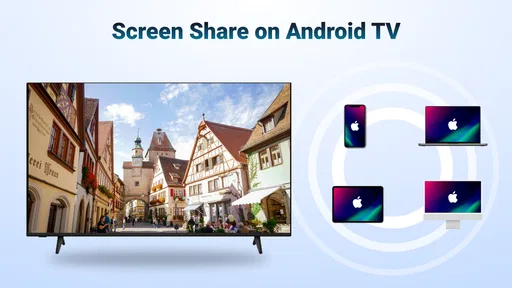

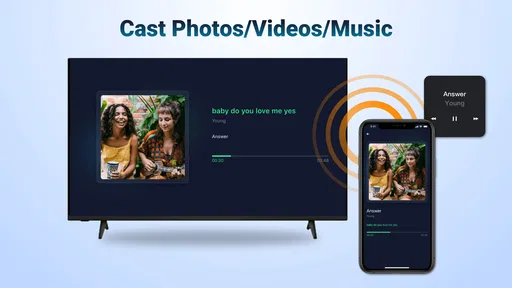
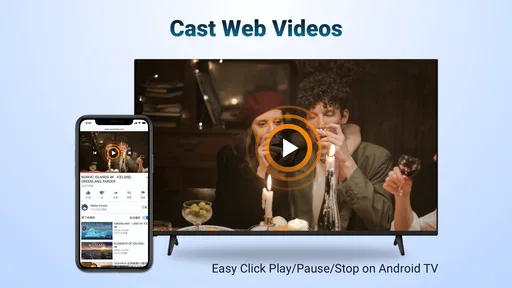

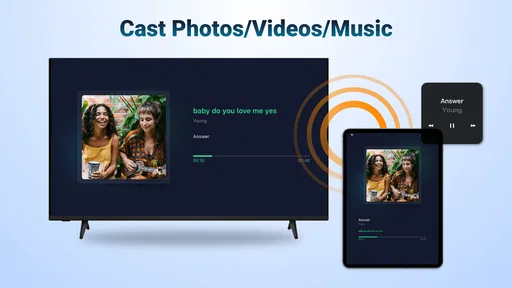
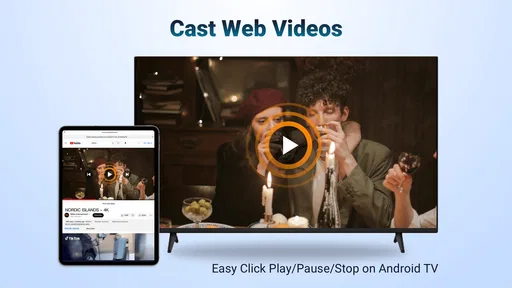
Our Review of AirMirror: TV Cast & Mirror
 Analysis by Appyee
I tend to reach for a casting app when I want the TV to do more than show whatever is already built into its own menus. AirMirror: TV Cast via AirPlay is aimed at that simple handoff: bring web video or a phone screen to an Android TV through AirPlay. That makes it most appealing when the clip, page, or photo is already on my phone and I would rather watch it from the sofa than search for it again on the television.
What to expect from the first connection
The speed of a cast depends on more than the app itself. The phone and TV need to be on the same Wi-Fi network, and the network has to carry the stream reliably. When those conditions are in place, the basic idea is straightforward: open what you want to share and send it to the TV. If discovery takes a moment or playback does not begin immediately, I would check the network and device compatibility before assuming the app is at fault.
That distinction matters because casting is not the same as playing a file locally on the television. Your phone, Wi-Fi, the source video, and the TV all contribute to the experience. A strong home connection can make a short web clip feel effortless; a busy or weak network can make even a simple video feel sluggish. I would treat AirMirror as a convenient bridge, not as a way to fix a slow connection or improve the source quality.
Where it fits into an ordinary evening
A useful everyday example is finding a recipe video or travel clip on your phone while dinner is underway. Rather than passing the handset around or squinting at a small display, you can put the video on the Android TV and keep the phone nearby for the next step. It also suits a casual photo-sharing moment: the person with the pictures controls what appears, while everyone else can see them from across the room.
For web videos, casting is especially handy when the TV’s own browser or app selection makes finding a particular page awkward. It can save the repeated search and let you start from the device where you already found the content. I would still keep the phone charged and close by during a longer session, since the phone remains part of the workflow even when the TV is doing the viewing.
When a session puts more pressure on it
Short clips, a few photos, and occasional screen sharing are modest jobs. Longer viewing, repeated casting, or mirroring an active app asks more of the phone and the wireless network. If several people are using the same Wi-Fi at once, or the phone is already busy, a perfectly smooth result is less certain. I would close unnecessary tasks and make sure the TV and phone have a steady connection before blaming the receiver for a stutter.
There is also a practical difference between sending a web video and mirroring the whole screen. A video cast keeps attention on the media; full-screen mirroring exposes whatever is on the handset, including interruptions that may appear while you are presenting. Before showing something to a group, I would silence notifications and open the exact screen or clip first. That small bit of preparation makes the experience feel much more deliberate.
Choosing between casting and other options
Compared with opening a video directly in a TV app, AirMirror can be more convenient when the material is already on a phone or in a web page. A native TV app is often the simpler choice for regular services you watch every day, because it avoids using the phone as the starting point. A cable can be more predictable for a presentation when wireless discovery is unreliable, while a platform’s built-in casting option may be preferable if it already handles the particular video cleanly.
Screen mirroring has its own trade-off: it can show more than a single video, which is useful for a walkthrough or a quick demonstration, but it also makes the phone’s interface part of the picture. For gaming, that means I would not assume the TV will respond instantly to every touch; timing-sensitive play is better kept on the handset unless the connection has proved responsive in that specific setup. For a relaxed slideshow or app demonstration, the extra flexibility is more valuable than perfect immediacy.
Who is likely to get the most from it
I would recommend AirMirror to someone who often finds web videos on a phone, owns an Android TV, and wants an uncomplicated way to share that material in a room. It is also a sensible option for occasional mirroring when explaining an app or showing photos to family. If you mainly watch through the same few services, rarely share your phone screen, or prefer to keep the phone out of the process, a TV app or another built-in playback route may suit you better.
BoostVision develops this video-player and editing app, which is free to install and rated for Everyone. It has a 4.4 average from around 16 thousand ratings and more than 1 million installs. The current version is 1.4.8, and it requires Android 6.0 or later. Those details make it easy to judge whether the Android side fits your setup, but the television and network still need to cooperate for casting to work well.
Setting Up for Streaming Success
First things first, getting AirMirror: TV Cast via AirPlay up and running was a breeze. I downloaded the app on my phone, followed a few simple instructions, and voila, I was ready to cast! The interface is clean and intuitive, making it super easy to navigate even if you’re not the most tech-savvy person.
What I really appreciate is that it works seamlessly with both iOS and Android devices. You simply connect your phone and TV to the same Wi-Fi network, and you’re all set to start streaming. I didn’t experience any connectivity issues or lag, which is a huge plus since there’s nothing more annoying than buffering during a crucial scene.
Exploring the Features
One of the standout features of AirMirror is its ability to stream in high definition. Whether I was watching a movie or sharing a slideshow of my latest adventures, the quality was crisp and clear. It’s like having a personal cinema right at home. Plus, the app supports multiple formats, so you don’t have to worry about converting files.
Another neat feature is the ability to mirror your phone’s screen in real-time. This came in handy when I wanted to show off some gameplay or walk my friends through a new app. The real-time mirroring is smooth, with no noticeable delay, making it perfect for presentations or just some casual showing off.
A Few Things to Consider
While AirMirror: TV Cast via AirPlay is packed with features, there are a couple of things to keep in mind. First, make sure your devices are compatible with the app. While it works with most modern devices, it’s always good to double-check to avoid any surprises.
Also, the app is free to download, but there are in-app purchases. If you’re someone who wants unlimited access to all features, be prepared to spend a little extra. However, the basic version is more than enough for casual users.
Final Thoughts
All in all, AirMirror: TV Cast via AirPlay has exceeded my expectations. It’s a fantastic tool for anyone looking to enhance their streaming experience. With its user-friendly interface, high-quality streaming, and real-time mirroring, it’s hard to imagine going back to traditional methods.
If you’re looking for an effortless way to enjoy content on a bigger screen, this app is definitely worth downloading. Grab some popcorn, get comfy, and enjoy the show! You can find the download links for both Android and iOS on our site. Happy streaming!
A more dependable setup starts with a quick check
Before settling in for a film or showing something to visitors, I would test the connection with a short clip. Confirm that the phone and TV are on the same Wi-Fi network, then try casting a simple piece of web video. This quick check helps separate setup trouble from a problem with a particular page or a crowded network. It is also less frustrating to troubleshoot before everyone is waiting for the video to start.
If the TV does not appear as an available destination, I would first verify that both devices are connected to the intended network rather than a guest network or separate Wi-Fi band that isolates devices. Restarting the casting attempt after confirming the connection is a sensible next step. If the issue persists, checking that the TV supports the required AirPlay receiver workflow is more useful than repeatedly tapping the cast control.
Keeping longer viewing sessions comfortable
For a longer video, it helps to think of the phone as a remote and source rather than putting it away completely. Keep it within reach, avoid switching networks mid-session, and be prepared to reopen the video if the source page itself stops. The app can pass content to the TV, but it cannot make an unstable website or connection behave like a dedicated television service.
Network conditions are also worth considering when picture quality or continuity feels inconsistent. If other people are streaming or downloading at the same time, trying again when the network is quieter can be a more useful test than changing several settings at random. For important viewing, such as a planned group watch, I would start early enough to confirm the connection and have a native TV app as a fallback if the web source proves troublesome.
Practical limits around mirroring
Mirroring is flexible, but it is not always the cleanest way to show material. It duplicates the phone’s display, so rotating the handset, changing apps, or receiving a notification can affect what everyone sees. I would prepare the screen in advance, set the phone’s orientation the way I want it, and avoid opening private messages while the TV is mirroring. That is a small but worthwhile privacy habit in a shared room.
It is also worth distinguishing a receiver app from a universal solution for every kind of media. If a service offers a reliable TV app, I would use that for routine viewing; if I need to show an app interface or a web page, mirroring is the more flexible tool. This is the key trade-off: AirMirror makes phone-first content easier to share, but the phone and wireless link remain part of the chain.
Cost, access, and the right expectations
The app is free to download, with optional in-app purchases ranging from $1.99 to $10.99 per item. I would begin with the free experience and only consider a purchase if I had a recurring need and understood which extra access it provides. Someone who casts now and then may not need to spend anything; a frequent user should decide based on actual use rather than assuming that every paid option is necessary.
Although the app supports Android 6.0 and later on the phone side, that does not by itself guarantee compatibility with every television or network arrangement. The most important practical question is whether your particular TV can receive the AirPlay-based connection and whether both devices can see one another over Wi-Fi. Checking that before relying on it for a presentation or family gathering can save time.
My performance verdict
For occasional web-video casting and casual screen sharing, AirMirror has a clear purpose and a low-friction role: it helps move something already on a phone to an Android TV without making the viewer hunt for it again. I like that flexibility most when the content is temporary or personally selected, such as a travel clip, a recipe, or a set of photos. It is less compelling as a replacement for a television’s regular streaming apps, and I would not choose wireless mirroring for a task where perfectly consistent timing is essential.
Overall, I see it as a practical companion for a compatible setup, not a magic fix for network problems or a substitute for every playback method. If your usual viewing starts on a phone and you want a straightforward way to share it on a larger screen, it is worth trying. If you prefer stable, phone-free viewing, use the TV’s own apps instead; that distinction is the clearest guide to whether this app belongs in your routine.
Verdict
Strengths of AirMirror: TV Cast & Mirror
- Easy setup and connection process.
- Supports multiple device types.
- No cables needed for streaming.
- High-quality video casting.
- User-friendly interface.
Limitations of AirMirror: TV Cast & Mirror
- Limited free features available.
- Requires stable Wi-Fi connection.
- Occasional lag in streaming.
- Not compatible with older devices.
- Ads in the free version.
Other Releases by BoostVision
View All
Remote for Fire TV & FireStick
Entertainment4.0

Universal TV Remote for All TV
Tools4.4

TV Remote control for All TV
Tools4.2

Remote for Smart Samsung TV
House & Home4.2
Similar Picks in This Category
View All
Google TV
Google LLC3.9

iTunes
Apple4.7

YouTube
Google LLC3.8

MX Player
Amazon Mobile LLC4.2

CapCut - Video Editor
Bytedance Pte. Ltd.3.5

PLAYit-All in One Video Player
PLAYIT TECHNOLOGY PTE. LTD.4.5
Frequently Asked Questions
What is AirMirror: TV Cast via AirPlay, and how does it work?
AirMirror: TV Cast via AirPlay is an app that allows users to mirror their Android or iOS device screens onto a TV using the AirPlay protocol. It works by connecting your device and TV to the same Wi-Fi network, enabling seamless streaming of video, audio, and other media content directly from your device to your TV.
Is AirMirror compatible with all TV models?
AirMirror is designed to work with TVs that support AirPlay, a feature commonly found in Apple TV and some smart TVs. Before downloading, ensure your TV has AirPlay compatibility. If your TV doesn't support AirPlay natively, you may need additional hardware, like an Apple TV, to use this app effectively.
Are there any costs associated with using AirMirror?
While AirMirror offers a free version with basic features, there may be premium options or in-app purchases for advanced functionalities. Check the app store description for detailed pricing information. Users should evaluate if the free version meets their needs or if the premium features justify the cost.
What are the system requirements for AirMirror?
For smooth performance, ensure your device runs on Android 5.0+ or iOS 11.0+. Sufficient network bandwidth is also crucial, as both your device and TV need to be on the same Wi-Fi network. Check compatibility with your specific device model and operating system version prior to installation.
How secure is AirMirror, and does it protect my data?
AirMirror prioritizes user privacy by utilizing secure connections for data transmission. However, it's essential to download the app from official sources like Google Play or the App Store to avoid counterfeit versions. Regularly updating the app can also help protect against potential security vulnerabilities.
